What the E-Jet FMS does
The flight management system (FMS) is the part of the E-Jet avionics that turns your route into a flight path the aircraft can follow. It holds the navigation database, builds the flight plan from origin to destination, computes performance and fuel predictions, and supplies lateral (LNAV) and vertical (VNAV) guidance to the autopilot and flight director. On approaches that require it, it also continuously estimates its own position accuracy and compares it with the RNP value required by the procedure.
Pilots talk to the FMS through the MCDU (multifunction control display unit) on the pedestal. Almost everything you do with the FMS in normal operation, from the first route entry at the gate to a late runway change on arrival, happens on the MCDU. That is why FMS fluency is one of the first things new E-Jet pilots are expected to show in the simulator.
Anatomy of the MCDU
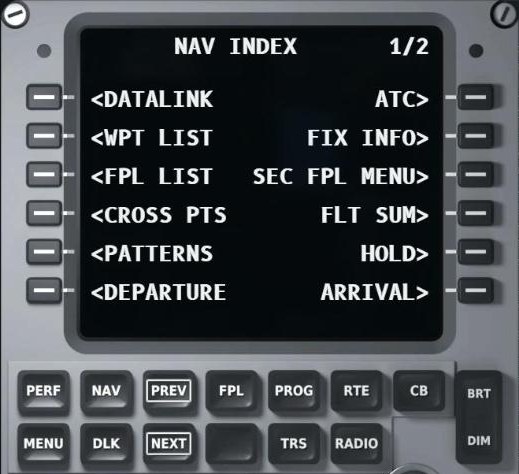
Display and title line
The top line shows the page name and page number (for example ACTIVE FLT PLAN 1/3). Data fields are arranged in rows next to the keys.
Line select keys (LSK)
Six keys on each side of the display. They select an option, or move data between the scratchpad and the field next to the key.
Scratchpad
The bottom line of the display. You type here first, check what you typed, then send it to a field with the LSK. Messages from the FMS also appear here.
Function and page keys
Keys such as NAV, FPL, PERF, PROG and RTE open the main pages; PREV and NEXT move through multi-page displays.
A typical FMS setup flow
The exact sequence and cross-checks come from your operator's procedures. In general terms, an FMS preparation covers:
- Position and database: confirm the navigation database is current and the aircraft position is initialised.
- Route: enter origin, destination and the route, then load the departure (SID) and, later, the arrival (STAR) and approach.
- Review the flight plan: check every waypoint, discontinuity and constraint against the clearance and the charts.
- Performance: enter weights, fuel and cruise level so the FMS can compute speeds and predictions.
- Take-off data: runway, conditions and the resulting speeds and thrust settings.
- Cross-check: the second pilot verifies the entries before they are used.
Worked example: building a published hold
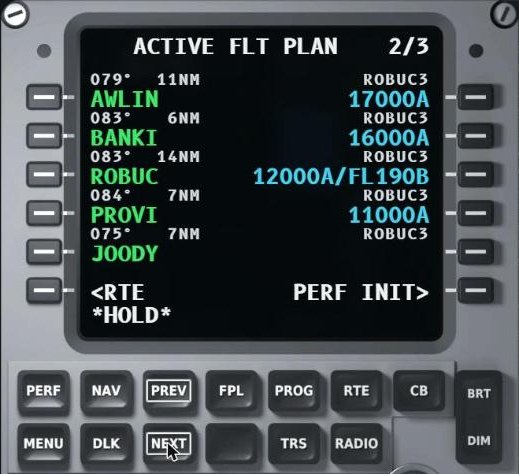
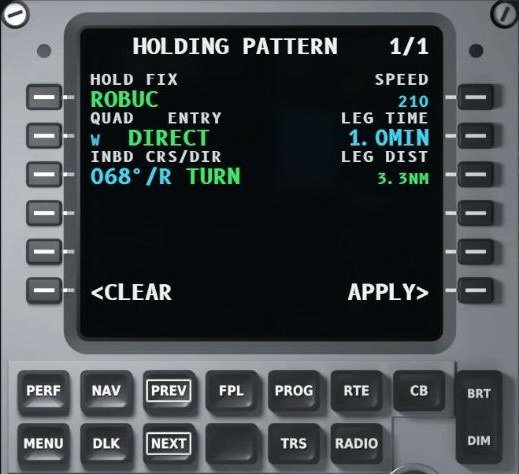
A classic simulator moment: ATC says "hold over ROBUC, as published". On the E-Jet E1 trainer the hold takes seven key presses:
- NAV to open the NAV INDEX.
- HOLD> to open the HOLD LIST.
- <NEW HOLD: *HOLD* appears in the scratchpad.
- NEXT to reach the page of the flight plan where the fix is.
- Line select the key next to ROBUC: the holding pattern page opens with the published data (inbound course, turn direction, leg time) and the entry the FMS has chosen.
- APPLY> to insert the hold into a modified flight plan.
- ACTIVATE> after cross-checking.
RNP, EPU and why the FMS watches itself
For RNP procedures the FMS must monitor its own navigation performance and alert the crew when it can no longer guarantee the required accuracy. On the E-Jet the estimate of position uncertainty is shown as EPU, compared against the RNP value of the procedure. If the estimate exceeds the requirement, the crew gets an alert and must follow the operator's contingency procedure. Understanding this logic is essential for RNP and RNP AR approaches. Our RNP AR course covers it in depth.
E1 (E170/E175/E190/E195) and E2: what changes
| E-Jet E1 (E170/E175/E190/E195) | E-Jet E2 (E190-E2/E195-E2) | |
|---|---|---|
| FMS interface | MCDU on the pedestal | MCDU on the pedestal, newer avionics generation |
| Core concepts | Same: flight plan, NAV pages, holds, performance, LNAV/VNAV, RNP monitoring | |
| Details | Page layouts, prompts and some workflows differ. Train on the version you fly. | |
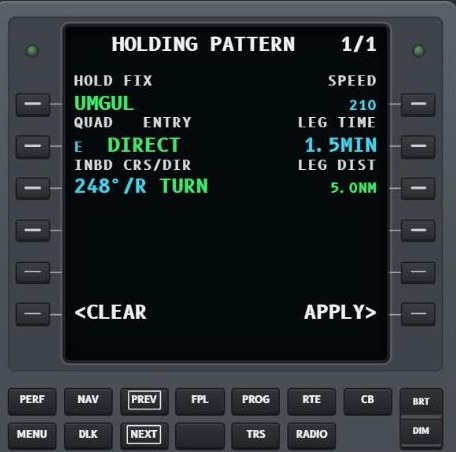
| TOGA trainer | E-Jet E1 MCDU | E-Jet E2 MCDU trainer |
Common FMS mistakes in the simulator
- Sending scratchpad data to the wrong line select key.
- Leaving a discontinuity in the flight plan after loading a procedure.
- Forgetting to activate a modified flight plan, or activating it without a cross-check.
- Missing an altitude or speed constraint on a SID or STAR.
- Searching for pages under pressure instead of knowing the path to them.
More in our article common E-Jet MCDU errors (Portuguese).
Frequently asked questions
Is the E-Jet MCDU trainer free?
Yes. The E2 MCDU trainer runs free in your browser, with no installation. Full cockpit trainers, the E-Jet E1 version and Sim Prep are paid plans.
Does it cover the E170, E175, E190 and E195?
Yes. The E-Jet E1 MCDU trainer covers the E170, E175, E190 and E195 with its own page logic and a US navigation database.
Is this approved training?
No. TOGA Academy is an independent study aid with simplified logic. It helps you arrive prepared, but your operator's approved manuals and training always prevail.
Do I need a flight simulator or gaming PC?
No. Everything works in a web browser on a laptop, tablet or phone.
Practise the E-Jet FMS before your next session
Flight plans, holds, performance and RNP, step by step, with instant feedback.
Start free with the MCDU trainerTOGA Academy is independent and not affiliated with any aircraft or avionics manufacturer or airline. Product names are used only to identify the aircraft concerned. Simplified logic for study; your operator's approved manuals always prevail.