E-Jet systems
E-Jet E2 MCDU step by step: the E195-E2 and E190-E2 FMS
If you come from the E1, the E2 FMS logic will feel familiar. But the screens, some fields and the differences training exist for a reason. Here is the setup flow on the E2 MCDU, with real screenshots from the trainer.
In short
- The FMS concept is the same as on the E1: route, performance, lateral and vertical guidance. Screens, fields and some flows change, and E1 to E2 is handled as differences training.
- The setup flow follows the usual order: route, departure, three PERF INIT screens, takeoff data and review.
- The FIX INFO page builds references around a fix, such as a radial or a distance ring, and shows crossing predictions.
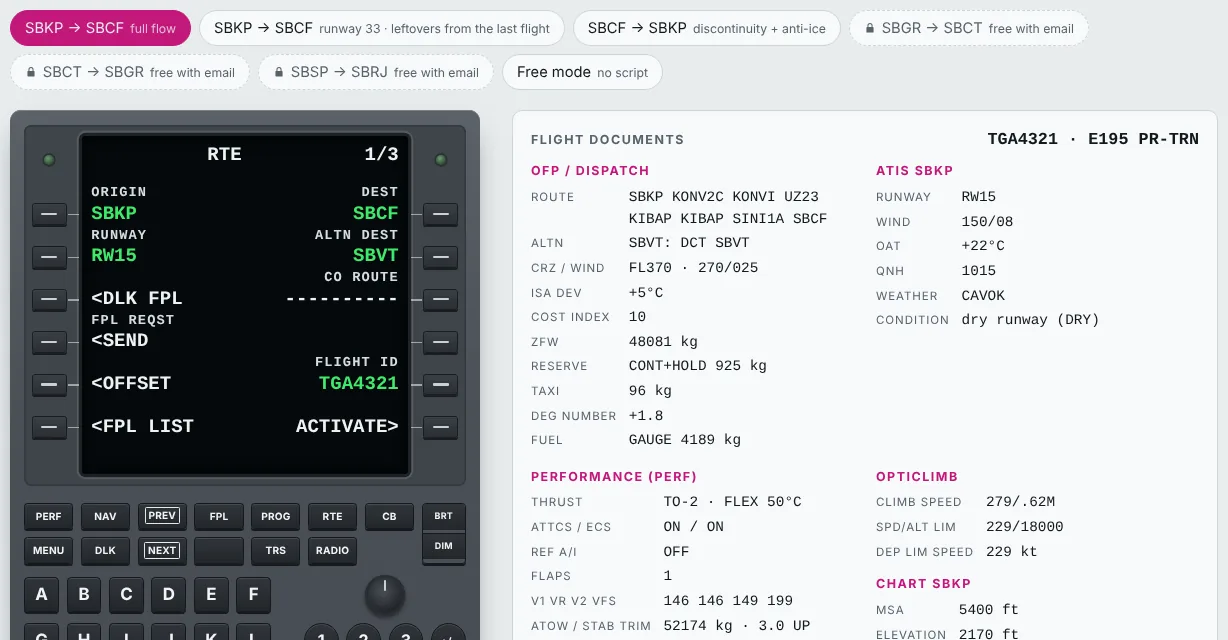
The E190-E2 and E195-E2 are the second generation of E-Jets. For pilots heading into an E2 course, the MCDU is usually the first practical hurdle: route, weights, winds and takeoff data all go in through it. This guide shows the setup flow on the E2 MCDU and the main differences for pilots who already know the E1.
Important: this article is study material. Always follow your operator’s approved manuals and procedures; your airline’s sequence, checks and division of duties have the final word.
E2 vs E1: what changes in the FMS
The core idea does not change. The E2 FMS holds the navigation database, builds the flight plan, computes performance and predictions and provides guidance to the autopilot and flight director. Pilots who already fly an E1 with the Next Generation FMS (NG FMS) will recognize the navigation index, the performance index, the progress page and the modified-versus-active plan logic.
What changes is around it and in the details:
- Displays. The E2 replaces the E1’s five portrait displays with four larger landscape displays, with more ways to split the screen into windows. The map and vertical profile, where you check what you programmed, get more room.
- MCDU screens and cursor control. The Canadian authority’s operational evaluation report for the E2 lists NG FMS MCDU screen differences and cursor control device (CCD) differences among the differences training topics.
- Training. In the Canadian evaluation, the E1 and E2 share the same pilot type rating designator, but moving from the E1 to the E2 requires ground and flight differences training. The rule that applies to you is your authority’s and your operator’s.
In practice: don’t study the E2 from E1 videos, or the other way round. Page names are similar, but fields, prompts and some flows are not the same. To see why software versions change what you see, read What is an avionics “load” on the E-Jet?.
Step 1: initialization, origin and destination
Start with the database and position in the navigation index: confirm that the database is current and the initial position is correct. Then, on the RTE page, enter origin, destination, departure runway and alternate.
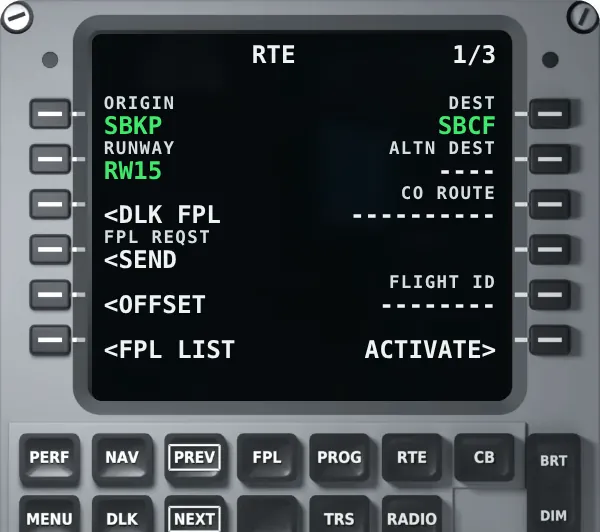
Next comes the route on the following RTE screens, and the departure on the DEPARTURE page: runway, SID and transition, review of the modified plan and activation. Same logic as the E1: nothing becomes the active plan without a review.
Step 2: PERF INIT in three screens
In the performance index (PERF), PERF INIT gathers what the FMS needs to compute predictions and speeds. In the E2 trainer, the first screen holds reserve fuel and airplane data; the second, cruise altitude, cruise wind and temperature, zero fuel weight and fuel; the third, the speed schedules and the cost index.
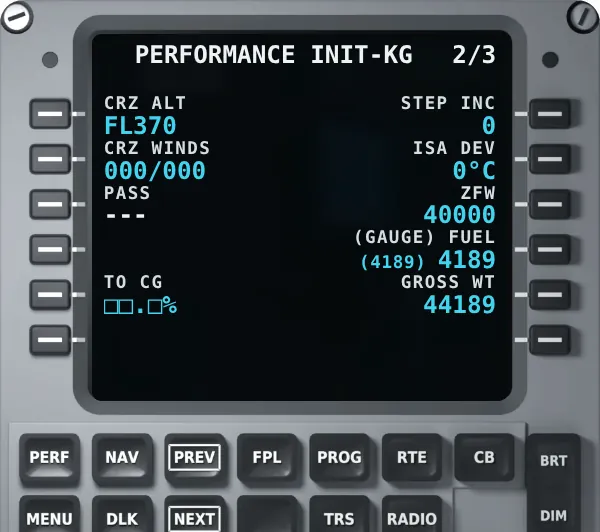
Note that the E2 trainer works in kilograms and the E175 trainer in pounds, as different operators do. Your airplane’s unit is the one in your operator’s documents. Check the unit before you type the first weight: a weight in pounds entered as kilograms, or the other way round, is a classic and serious error.
On the third screen, economy speed schedules come from the cost index when the fleet has the function. If your procedure uses fixed speeds, that is where they go.
Step 3: takeoff data
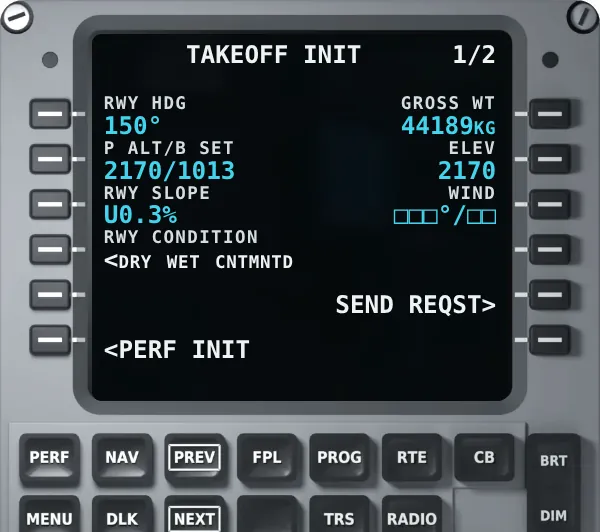
The TAKEOFF INIT page follows the same logic as on the E1: first runway and conditions (heading, pressure altitude, slope, wind and runway condition), then configuration and thrust. Speeds and thrust come from the approved performance calculation; the FMS is where they are entered and checked.
Step 4: FIX INFO, the page few people use
The FIX INFO page, in the navigation index, builds geometric references around a fix: a radial, a distance ring or an abeam point. These references show on the map and, when the route crosses one of them, the FMS shows crossing predictions such as estimated time, distance to go and altitude.
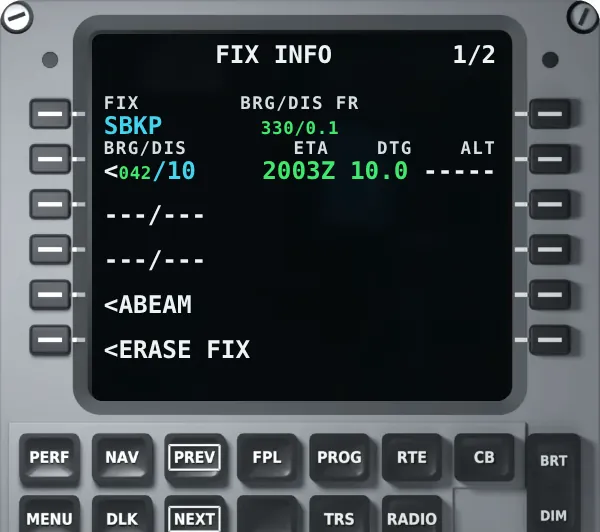
Study examples: marking a reference distance around the destination, visualizing a radial requested by ATC or tracking an abeam point. The exact functions vary with the software version, so check your fleet’s FMS guide before using it on the line.
Step 5: check it on the map and review
On the E2, the larger displays help: the map and vertical profile show right away whether the route has a zigzag, a discontinuity or an odd constraint. Review the active plan against the operational flight plan, check weights, fuel and takeoff data and cross-check with the other pilot. In the MCDU + Map Trainer, the route shows on the MFD as you program it.
How to practice
The E2 MCDU Trainer is free and runs in your browser, with guided scenarios that include a flight plan, ATIS and takeoff data, and feedback on every entry. The full E2 collection, with map, cockpit and guidance, is on the E-Jet E2 page. For how the FMS works in general, see our E-Jet FMS guide.
Frequently asked questions
Is the E2 FMS the same as the E1’s?
The concept is the same, but screens, fields and some flows change. Moving from the E1 to the E2 is handled as differences training. Study the version you will fly.
What is the FIX INFO page for?
To build references around a fix, such as a radial or a distance ring, which show on the map and generate crossing predictions. Confirm the functions in your fleet’s FMS guide.
Weights in kilograms or pounds?
It depends on the operator. The right unit is the one in your airline’s documents. Check it before entering the first weight.
Is the E2 MCDU Trainer free?
Yes. The E2 MCDU Trainer runs free in your browser. Map, cockpit and guidance are part of the E-Jet E2 collection subscription.
Sources
- Transport Canada. Operational Evaluation Report, Embraer E170 (E-Jets), revision 1, which adds the ERJ 190-300 (E190-E2) and ERJ 190-400 (E195-E2).
- FAA. Advanced Avionics Handbook (FAA-H-8083-6).
- TOGA Academy. E-Jet E2 MCDU Trainer.